
919 B
919 B
Setting up a scheduled task in Windows
- Open "Task Scheduler"
- Click "Create Task" in right side bar
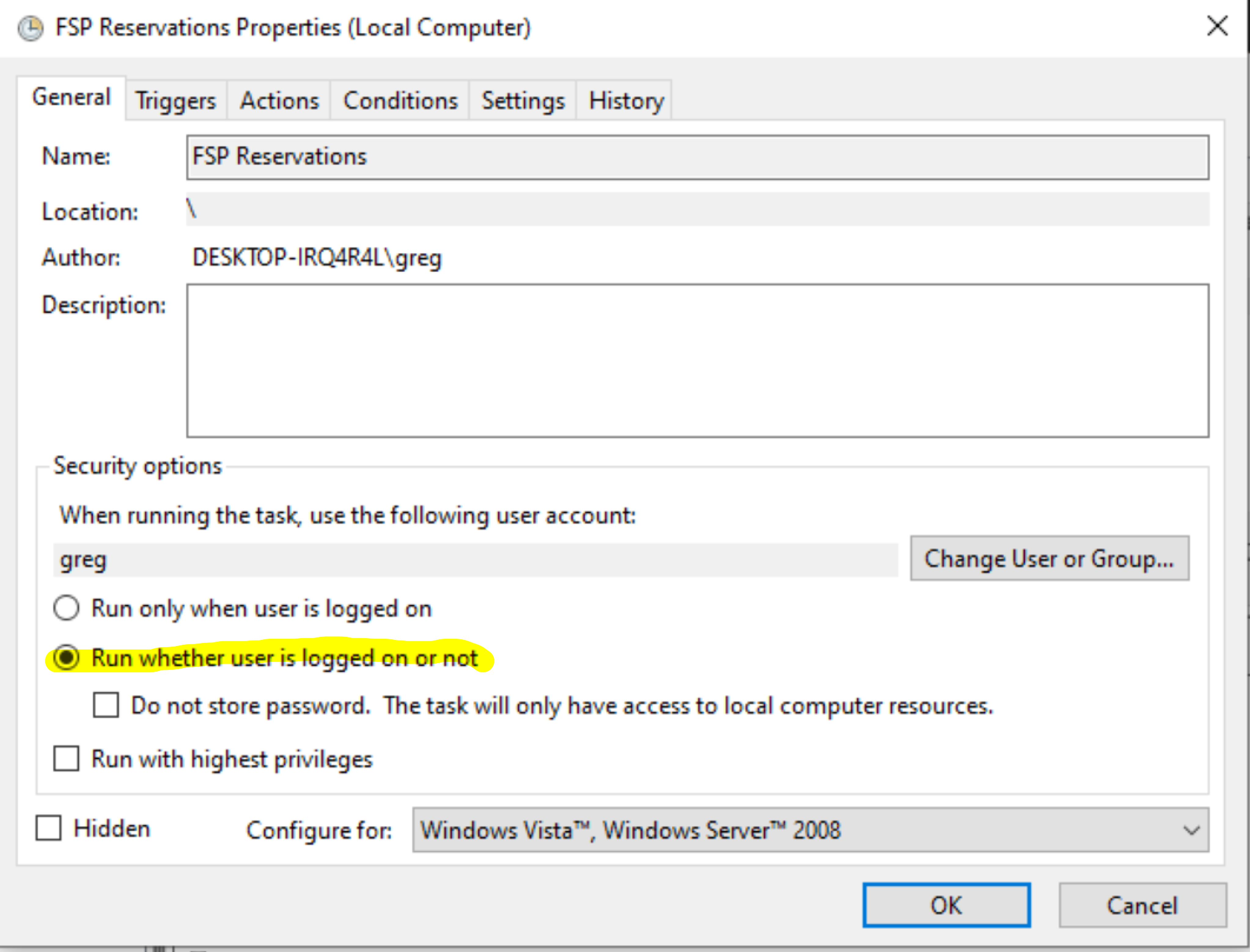
- Enter Task name and select "Run whether user is logged in or not"
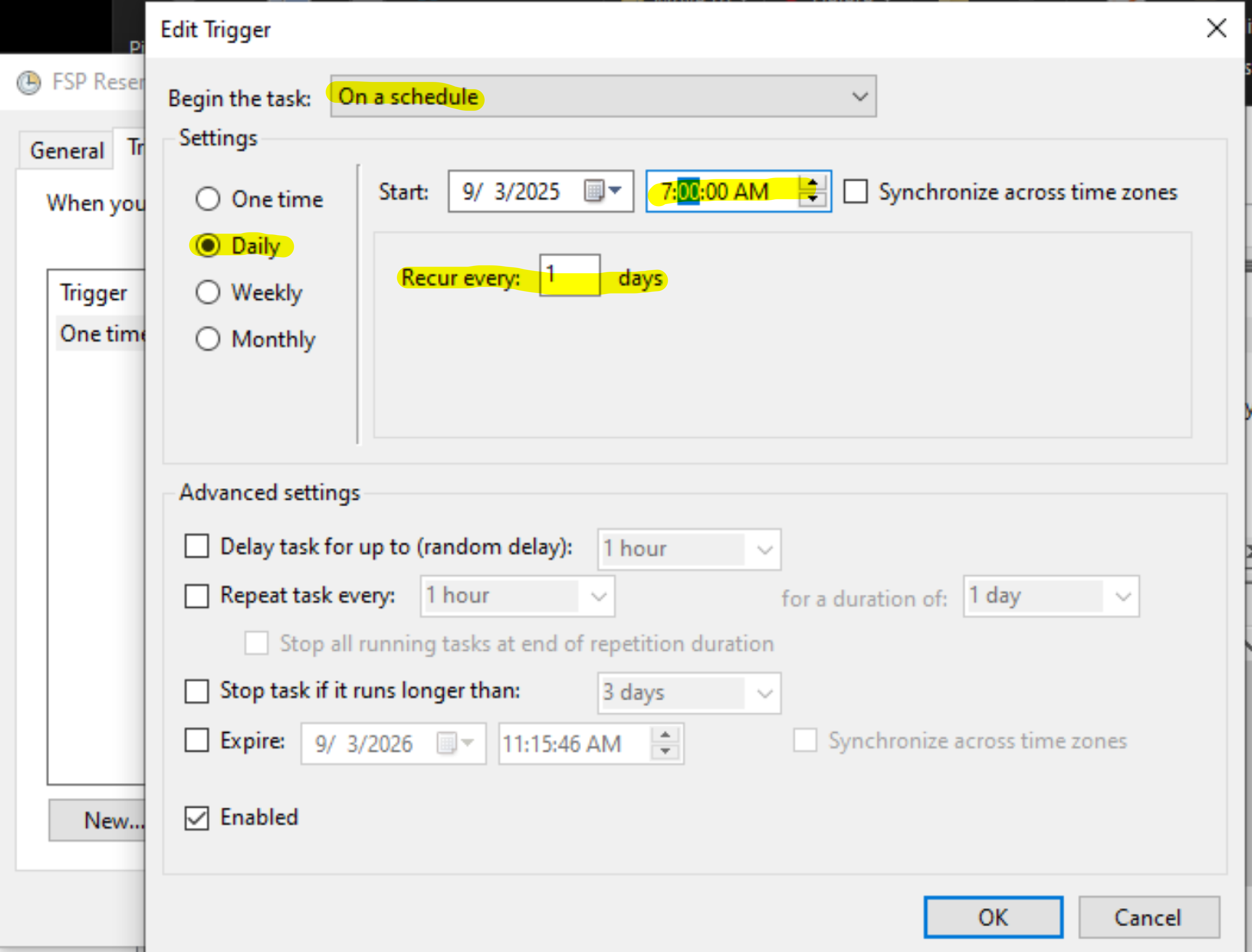
- Go To "Triggers" tab and add a trigger with the following parameters
- Go To "Actions" tab and add an action
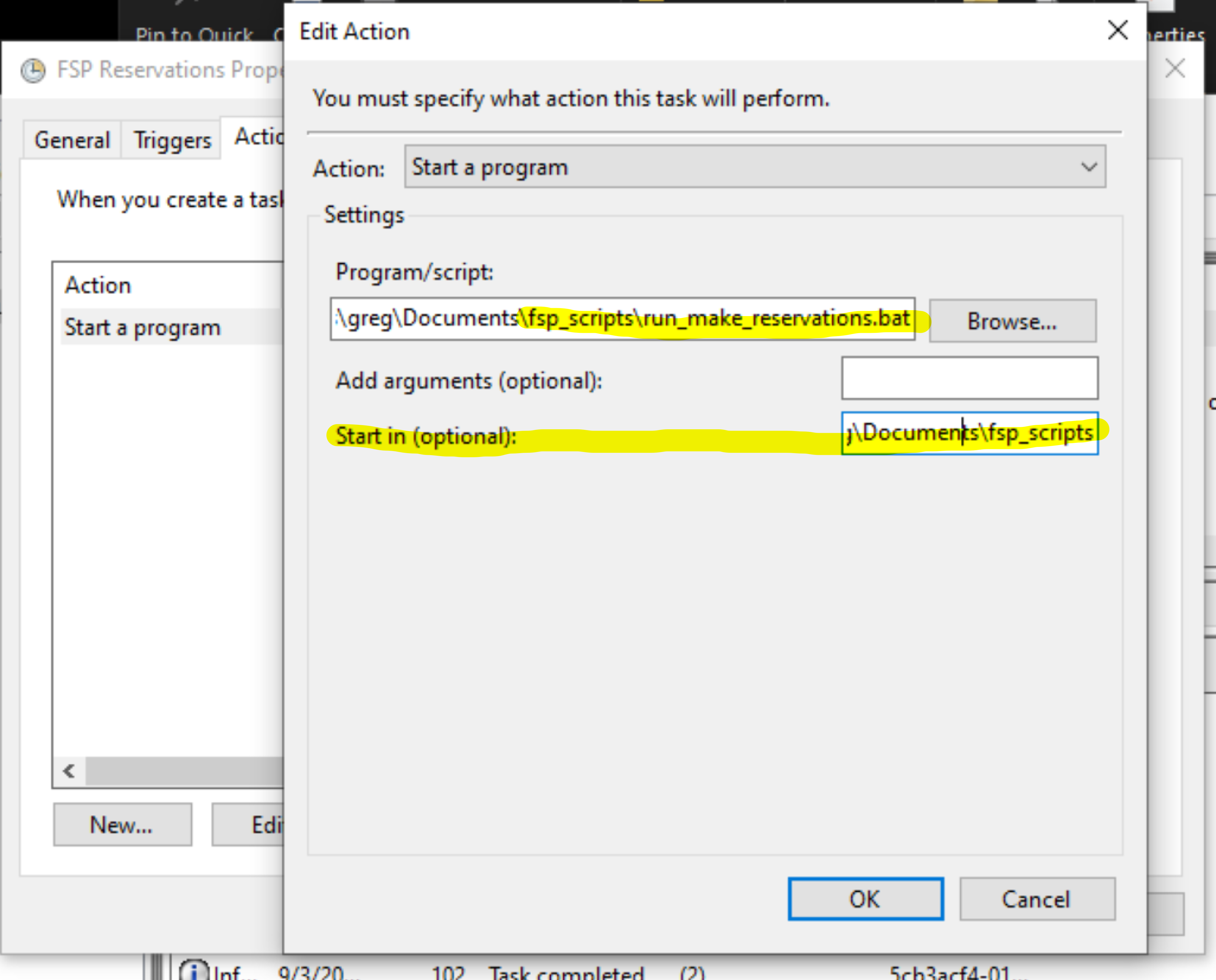
- Use the browse button to select the "run_make_reservations.bat" script
- Enter the path of the fsp_scripts dir in the "Start In" field (your path will be different than the screenshot)
- Click OK and verify task is listed with a status of "Ready"
- Each time the script runs it will dump it's text output to a file called reservations.log in the fsp_scripts directory. Check this regularly to make sure the script is behaving